Register your MT48
To register your MT48 interface, please access your Neumann account here.
You will need to create an account if you have no other Neumann products registered, otherwise, sign in to your account to register your MT48 under the Register Product tab.
Power and connect your MT48
To power the interface, connect the included power supply to the USB slot labeled Power on the back of your MT48.
You can alternatively power your MT48 over a Cat5e/Cat6 ethernet cable to POE+ compliant network switch (IEEE 802.3at)
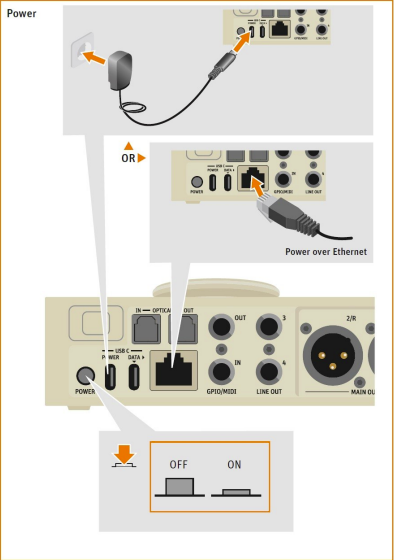
Connect the USB C DATA port on the back of your MT48 to your Mac or PC using the USB C cable shipped with your interface.
While USB C implementation is recommended, you can alternatively implement the MT48 in an AES67/Ravenna Audio over IP (AoIP) deployment. In this case, you will not utilize the USB C Data connection.
MT48 Toolkit
You can obtain the latest MT48 Toolkit from within your Neumann account under Software Download upon registering your interface.
Simply download and install the corresponding toolkit to your operating system.
The MT48 Toolkit will install a number of components:
The MT 48 Agent
MT 48 Remote Application
MT 48 ASIO audio driver (Windows only)
MT Portal update utility
Documentation and firmware files
Firmware
To find out if your MT48 is on the newest firmware, the MT48 Toolkit installs the MTUpdater utility which automatically checks for the latest firmware over an active internet connection.
After installing the appropriate MT48 Toolkit for your operating system, check for this icon on the MT 48 Agent which indicates an update is available. Select "Show Available Updates" with the orange dot in the MT Agent:

The MTUpdater will show the update status of your device, and Toolkit as applicable
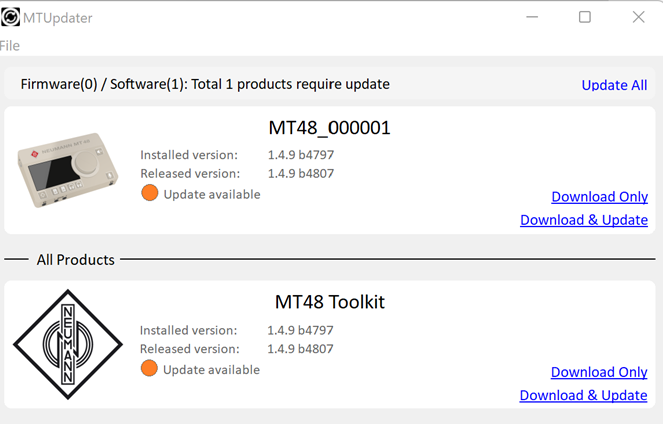
Download Only will save the file locally, which you can update at a later point manually - either through the Maintenance page, or through MTUpdater.
Download & Update will download the file and proceed to update.
We do recommend download any available firmware updates after the Toolkit has been installed for optimal performance and stability.
Manual Firmware Updating
In order to update the MT 48 firmware manually in Maintenance Mode, here are the steps:
1. With the MT 48 connected to your computer, go to the MT48 Agent in the status bar (Mac) or task tray(Windows) to open its menu
2. In the menu, select OPEN MAINTENANCE PAGE
3. A browser window opens.
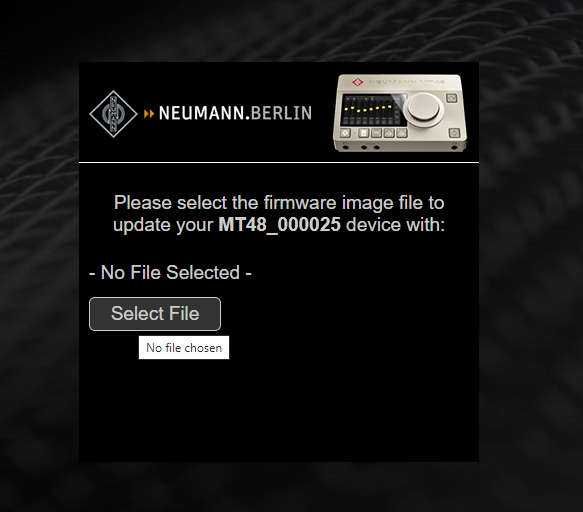
4. In the browser window, click Select File and locate the firmware file you downloaded, which ends with a .MT48 extension.
5. Click UPDATE and wait for the procedure to end. Make sure your computer does not enter sleep mode during the update process.
The updating procedure generally takes around 10 minutes.
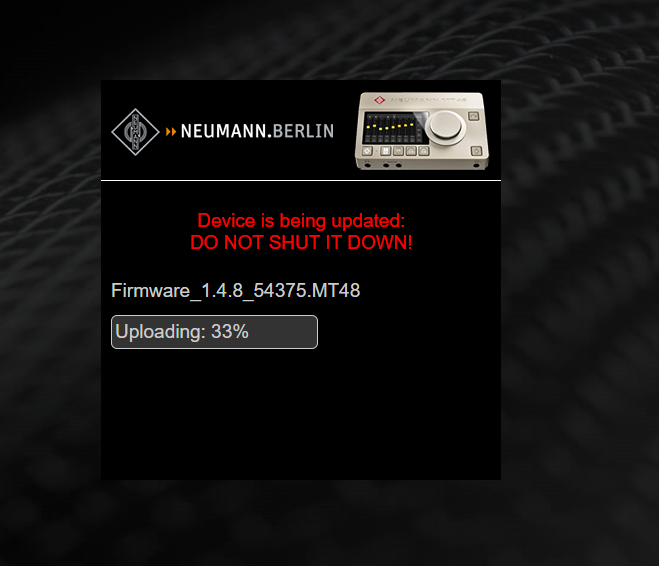
Don’t panic if the process appears to get stuck. Do not abort, just wait.
6. Once the update is completed, the message REBOOT appears. Confirm.
7. After rebooting the device, your MT 48 is on the latest firmware.
Once your device has been installed, updated, and your computer recognizes the MT 48 you can proceed to configure your DAW accordingly and get recording!