PREAMBLE
When the Audio Engineering Society ratified the X-192 groups findings, the outcome was the AES67 proposal for interoperability of devices transmitting real-time audio streams on networks.
AES67 is completely compatible with RAVENNA networks and manufacturers announcing that they are delivering AES67-ready devices means that they are in fact delivering RAVENNA compatible ones.
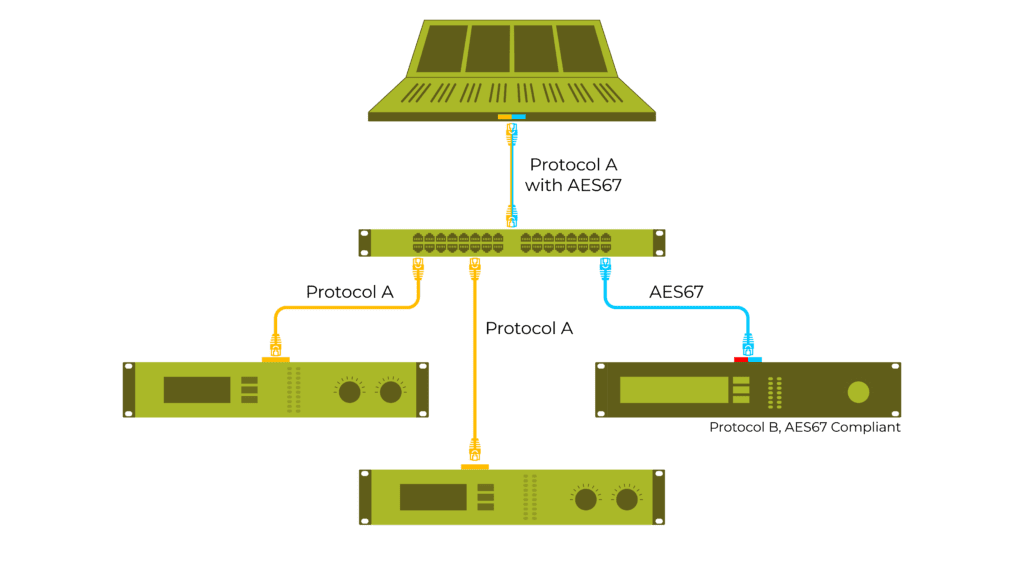
The RAVENNA protocol is able to automatically provide the source description (SDP) to the target, but in third party AES67 interfaces it needs to be done manually, as it is not standardized, all manufacturers tend do it in their own ways.
In short, all our audio over IP interfaces products with no exception support AES67 by definition !
Notes
Dante device must be AES67 capable, please consult Audinate website for details.
E.g. Dante Virtual Sound card is not AES67 capable.Dante devices only supports 48 kHz in AES67 mode for the moment.
Maximum number of streams for Dante in AES67 mode is 32.
Anubis and Hapi MKIII as well as Neumann MT48 can also run in Dante mode natively.
Please see the Neumann website for details
Prerequisites
All devices must be connected to a network switch (properly configured for AOIP - see this page for details)
A computer with Dante Controller and ANEMAN installed, connected to the network switch.
Audio over IP device(s) must be set to AES67 mode:
MassCore : in VS3 Control Panel - Latency AES67
Merging Audio Device (ASIO) : MAD panel : Latency 48 (AES67)
Virtual Audio Device (CoreAudio) : Merging RAVENNA/AES67 settings : Latency 6/12/48 smpl (AES67)
Horus / Hapi MKI-MKII-MKIII : Setup > System > Latency AES67 (48 smp)
Anubis / Neumann MT48 : Settings > General > Latency AES67 (48)A 1Gbps interface is required for AES67 mode
PTP clocks
Our devices and Dante devices in AES67 mode use PTPv2.
Any device can be set as PTP Master or Slave (Dante V2 Leader or Follower), as long as there is one PTP Master on the network.
For Dante devices, this can be set in Dante Controller - Clock Status tab.
For Horus / Hapi MKI-MKII-MKIII, this can be set in the IO & Sync Page
For Anubis and MT48, this can be set in the Settings - General: PTP Master.
Note: the Merging Audio Device (ASIO) requires that a device on the network provides an ASIO Clock (Anubis, Horus, Hapi, MT48).
If one of the above devices is not the PTP Master, then please go in Setup - System (Horus / Hapi MKI-MKII-MKIII) or Settings - General (Anubis, MT48) and set the ASIO Clock to ON. If you have several of those devices, you only have to apply this setting on only one device.
Audio transmission from a Dante to an Audio over IP device in AES67.
Dante controller
Start Dante Controller
Go in Device > Device View page.
Select your Dante device
Go in the AES67 Config tab
Set the AES67 mode to enabled.
Make sure the Multicast Address Prefix is set to 239.69.xxx.xxx
Go now in the Device Config tab.
Set the Latency to 1, 2 or 5msec (AES67 recommended value is 3 msec)
In AES67 mode, Dante devices minimal latency is 1 msec, lower values won’t be accepted
In the Device drop down menu, select Create Multicast Flow, or click on the Create Multicast Flow button.
8. Tick the AES67 box, and select the channels you need to transmit.
Click on Create once done.
Note: The number of channels you may assign can change depending on your Dante license.
ANEMAN
Start the ANEMAN Agent.
Right click on the ANEMAN Agent icon in the taskbar to access its Settings.
In the Plugins filter section, activate the disco_SAP plugin.
Right click on the ANEMAN Agent icon in the taskbar and Quit
Restart the ANEMAN AgentAn AES67 device will be detected by ANEMAN
You can select the device and connect it in Multicast to a Merging device output.
Note: The AES67 device will show yellow dots when not connected (expected as the source is not connected to any sink)
Tip: You may create a Zone in Aneman, set to 48 kHz and AES67 frame size. This will only affect our Audio over IP devices.
Manual connections - Advanced pages
Rather than using ANEMAN, you can also use the Merging device Advanced pages.
Start MT Discovery, and right click on the device to open its Advanced Pages.
Go in Sinks, then create a new sink by clicking on the create connection button, and label it.
Click in the "Source" field, you will get a list of the currently available SAP sources.
(on Advanced pages v1, click on the arrow next to the "Source" field to get the list)
4. Select your Dante stream.
The stream will now connect, the connection icon in the left column will turn green, and RTP Status will change to Receiving.
Note: Hapi MKII-MKIII / Merging Anubis users should also patch the required outputs in the Channels section.
Audio transmission from a Merging to a Dante device in AES67.
Start MT Discovery, and right click on the Merging device to open its Advanced Pages.
Go in Sources, and create a Source by clicking on the create connection button.
It will automatically get a name, but you may rename it now.Hapi MKII - MKIII / Merging Anubis: please patch the required inputs in the Channels section.
Horus / Hapi MKI - users: please select the required IO module.Change the address to 239.69.xxx.xxx (the user defined checkbox will be automatically ticked)
Set the required number of channels (Channel count)
(Codec must be L24 and Frame size 48)
Go back in Dante Controller Routing page, the source created is available in the Transmitters.
You can also check the source connection in the Device Info - Receive tab.
Simply use the Dante Matrix to connect the Merging device Source to your Dante device
Troubleshooting
Transmitter doesn't appear in the Dante transmitter list
Make sure the devices are correctly connected to the same switch and can access each other.
Make sure the device multicast address has same prefix as the one in the Dante controller (default 239.69.xxx.xxx)
Make sure the device is running at 48kHz, with Latency set to AES67 - 48 samples.
No Audio
Make sure the switch is gigabit 1 Gbps (100 Mbps will not work for AES67).
Make sure the switch is properly configured for AOIP.
Make sure devices are operating at 48 kHz.
Make sure you have ticked the AES67 Flow when you created the Dante Multicast Stream.
Latency performance issue :
Go in Dante Controller > Device view > Latency tab.
The latency value displayed should be green all time. If that is not the case, go in Dante Device Config tab and increase the Latency.