Out of the box, the MT 48 has four physical inputs that you can record from in your DAW software:
Mic 1
Mic 2
Line 3
Line 4
At any given time you can record from any of these inputs, in any combination, simultaneously or separately.
The key is to insert a track within your software - or select an empty one already present in a project- and set that track's input to the input you are physically connected to on your MT 48.
If you are recording multiple sources, you set up tracks for each MT 48 input being recorded.
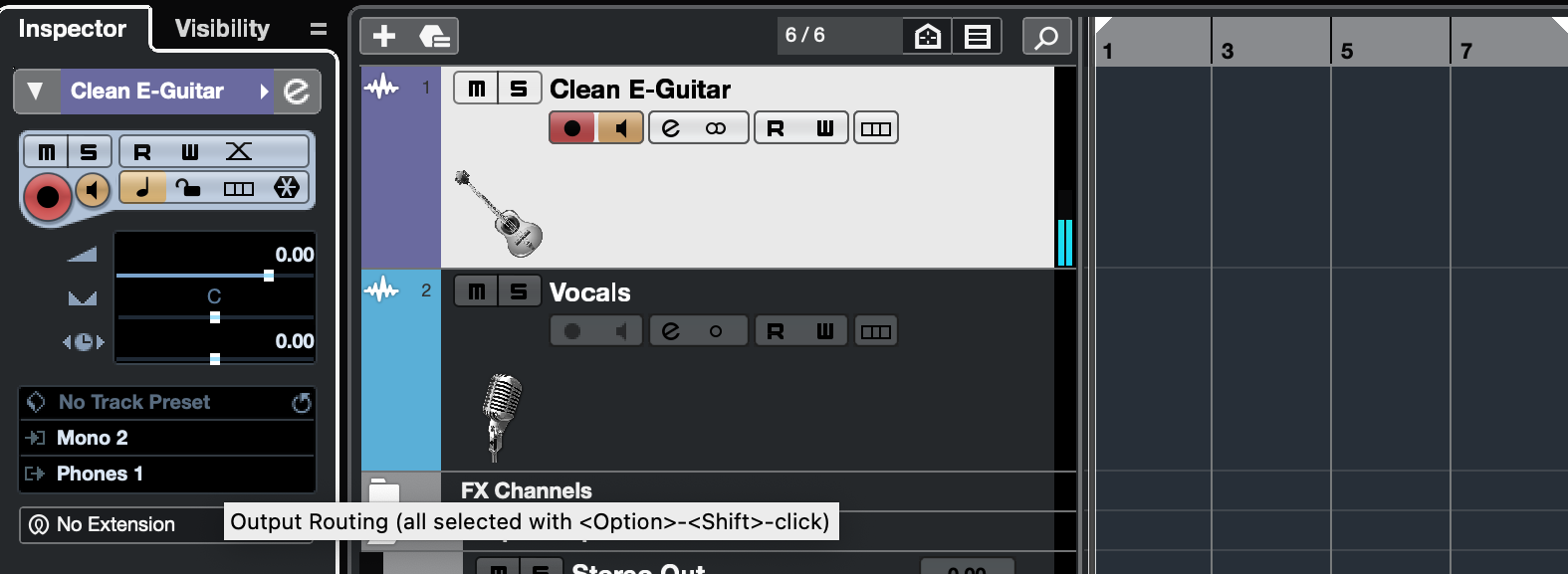
In the example we are using Cubase - A Mic is connected to the second input physically on the MT48 interface, which is selected toward the bottom left corner (Mono 2)
Before proceeding, a note about setting levels:
This is done via the MT 48's onboard mixer (touch screen), or the Remote Control App that installs with the Toolkit.
Select Mic 2 on your screen and pressing the Home button, or select the track itself via Remote Control App.
Select Preamp.
Here you can select:
Mic or Line (input type connected)
Pad (-12 dB or -24 dB cut)
Cut - input mute
Phase inversion/reversal
Low Cut filter (80 Hz)
48V Phantom power, if using a condenser mic
and the center Input Gain dial, which adjusts your input level.
This is black when off, and red when engaged or being set.
Using your mouse wheel on the Remote Control app, or the rotary knob on the MT 48 directly, bring up this dial level slowly while talking into your mic:
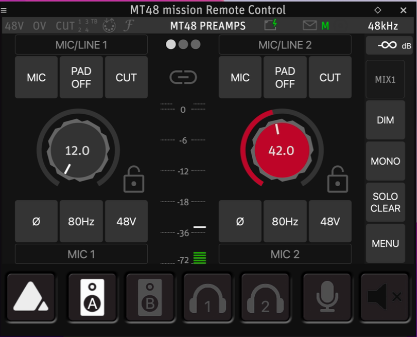
A healthy recording level, generally speaking, is anywhere between -18dB to -6dB.
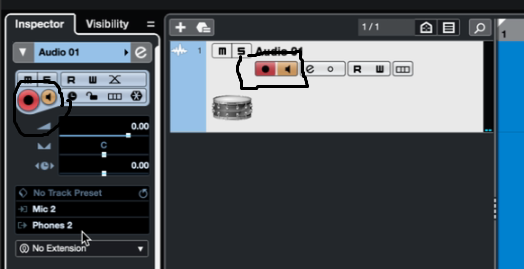
Lastly, in your DAW software, you arm the track (press the Red Circle) and then hit Record on your DAW transport when you are ready.
You can monitor this track either through the input monitoring button on your track (in Cubase, it looks like a speaker icon and is right next to the track arm button) or via the MT48 directly using its onboard mixer and DSP - more on that in the Using the Onboard DSP page.
Depending on the DAW, input monitoring is automatically triggered when a track is armed to record, but the control can be manually toggled on or off. This control is on the track, typically next to the track's record arm button, and can be toggled on or off as desired.
It can be useful when recording with an effect, such as a reverb or guitar plugin, but this can introduce latency.
Lastly, you do not want to input monitor through both the DAW and your MT 48 as this can create a doubling/echo effect - choose one or the other.
A few notes worth mentioning:
- When you complete recording on a track, turn off the track's Arm so the data does not get inadvertently recorded over.
- You repeat these steps for each track you are recording.
- If you have a vocal mic on Input 1, a miked guitar amp on Input 2, and a keyboard on Line In 3-4 that you wish to record live, you would set up three tracks and go through the above process.
This is because Line In 3-4 in this example would record on a Stereo Input (inputs 3+4 together).
- Selecting a stereo input (Input 1+2) in your software with a mono source physically connected (i.e. a microphone plugged into Input 1) will result in a lopsided signal that you will hear back in one ear - in this example, the left.
Therefore, make sure your inputs are set accordingly for what you are recording.