Please note: these were verified on MacOS, but the steps within the software should be quite similar (if not identical) on the Windows side.
In Pro Tools, your audio option configuration options are in the Setup menu.
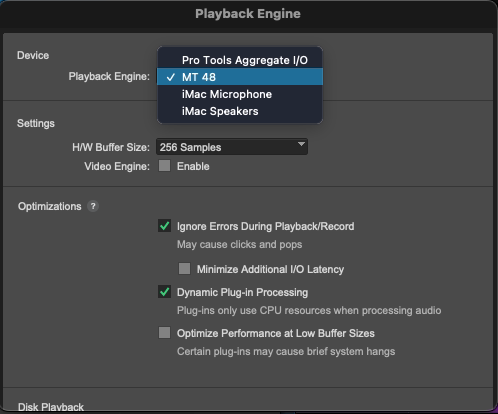
1. First, go to Setup > Playback Engine and select the MT 48 as your Playback Engine. Click OK.
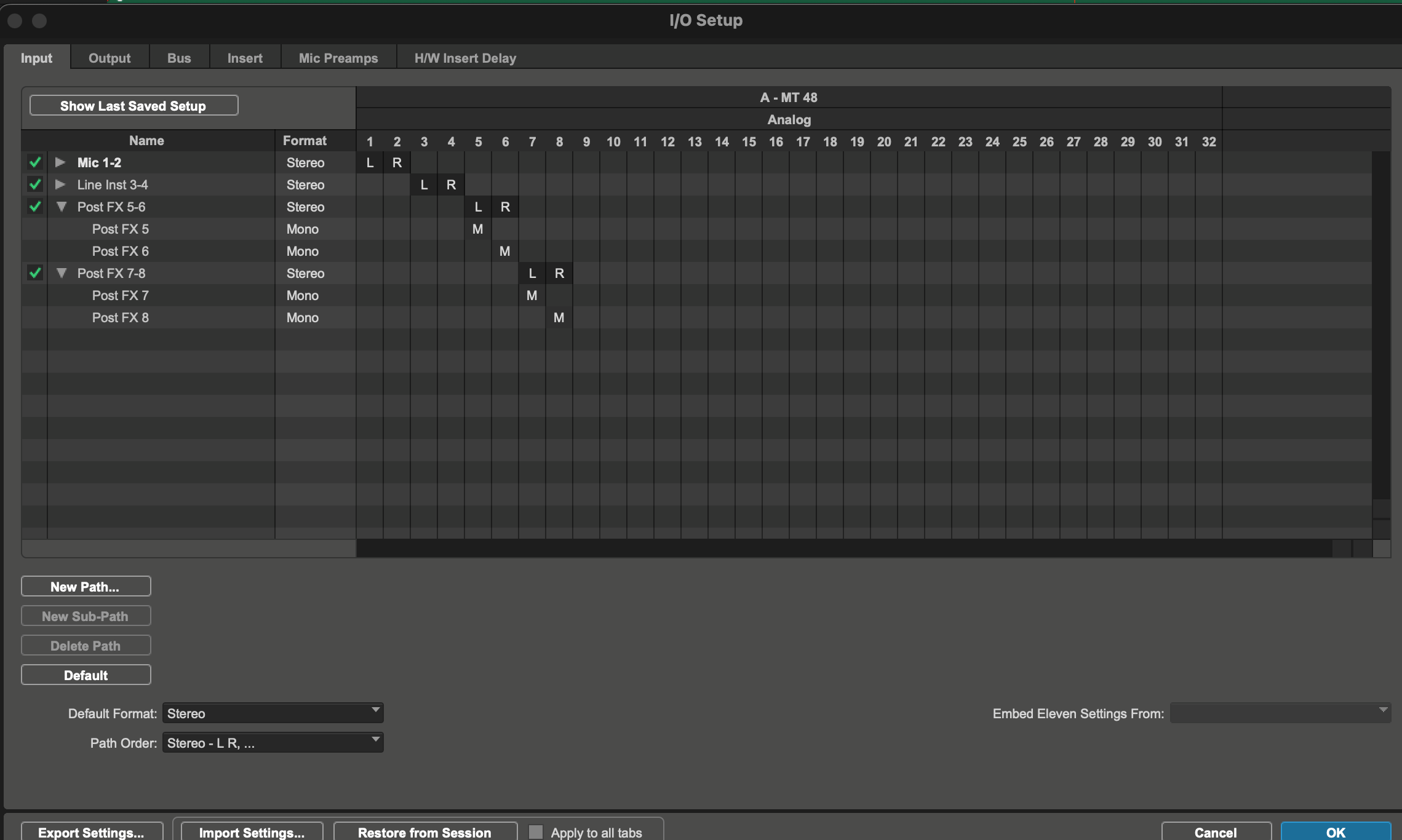
2. Go to Setup > IO. The Input and Output tabs should be configured based on the input and outputs you are using. They can also be renamed as desired (ie Out 1-2 to Main Monitors, etc).
Any unused Inputs and Outputs not being implemented can be unchecked here.
Press OK once done.
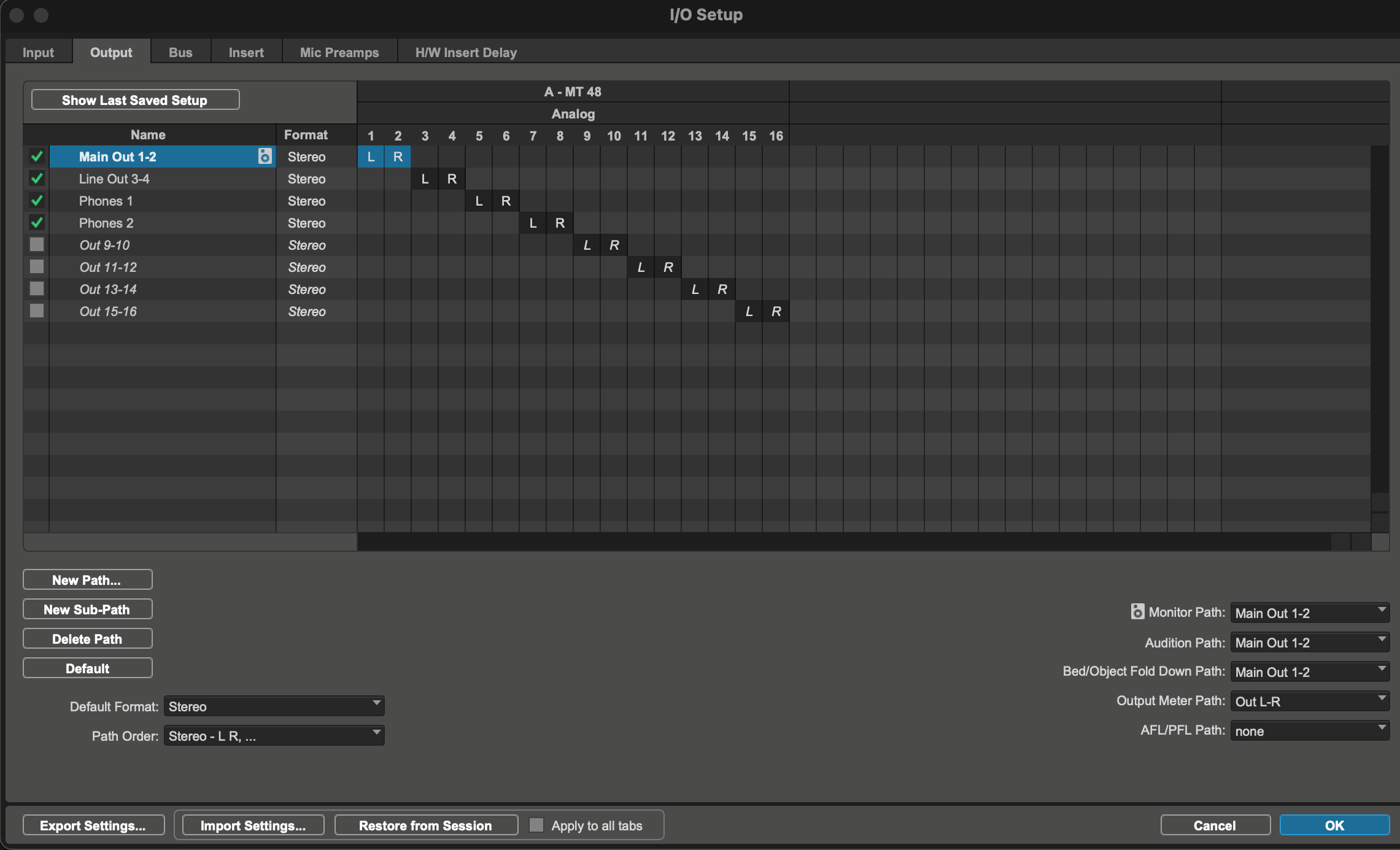
On the Output tab, note the Monitor Path dropdown in the lower right. This is where Pro Tools will default playback from.
Once you have the appropriate ins and outs showing and are renamed as desired, you can begin recording.
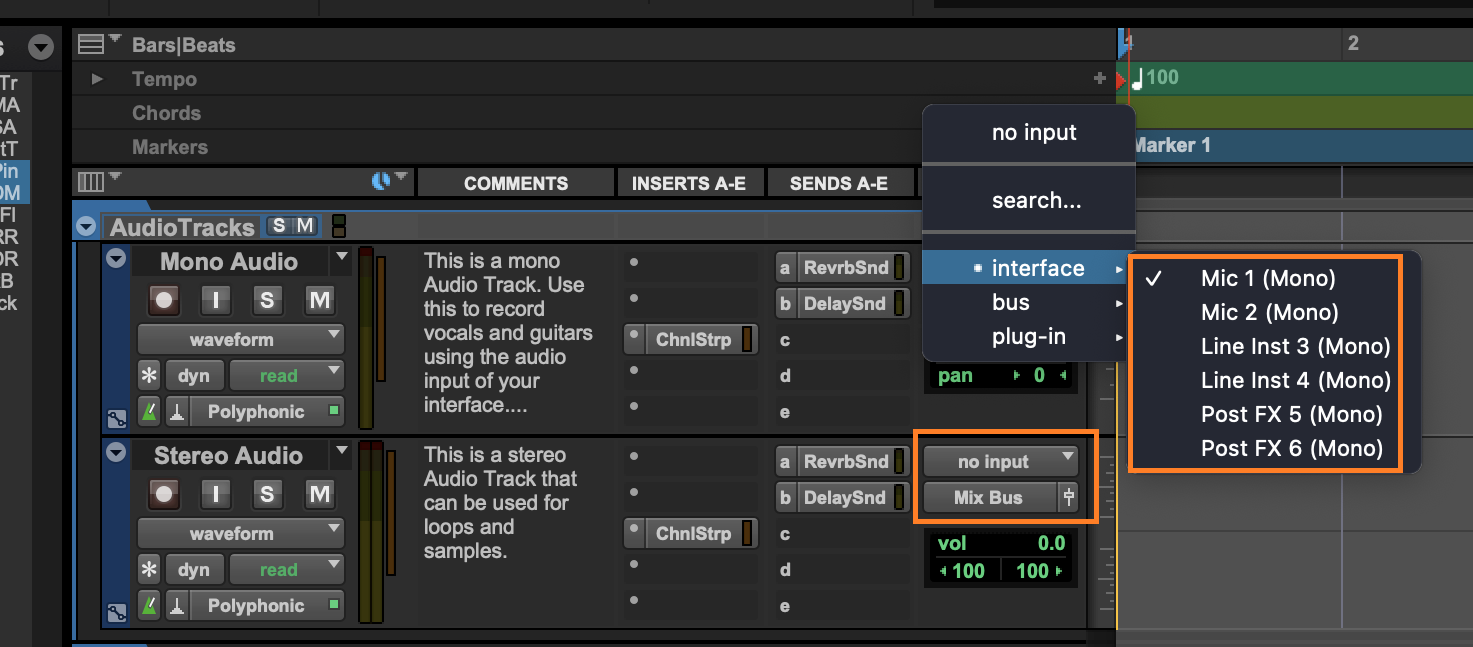
On a track, navigate to the I/O settings. The input will be the input your source is coming in from on the MT 48 (Mic 1, Mic 2, Line 3-4, etc.).
The Output will by default go to your Mix Bus, which then outputs to your main outputs on your MT 48. You can change this as you see fit.
Prior to recording, you will need to check your input level coming in to the interface. You do this through the MT 48's Preamp module for the appropriate input selected. If you are recording more than one source at the same time, you will need to do this for each input. See "Setting Up a Track to Record" in the Tutorials guide.