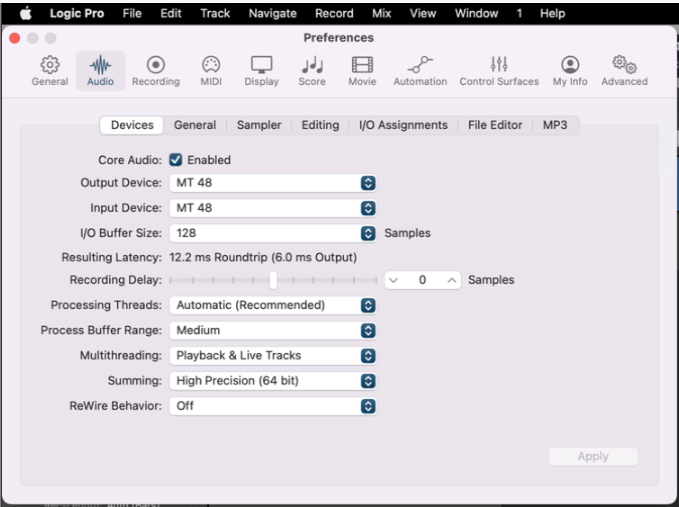
In Logic Pro, your audio configuration options are in the Preferences > Audio menu.
1. First, go to Logic Pro > Preferences > Audio and ensure Core Audio is Enabled. Select the MT 48 as both your Output Device and Input Device and click Apply to save any changes.
2. Go to Mix > IO Labels. The Inputs and Outputs can be renamed as desired (ie Output 1-2 to Main Monitors, etc) by selecting User and changing the Long name accordingly.
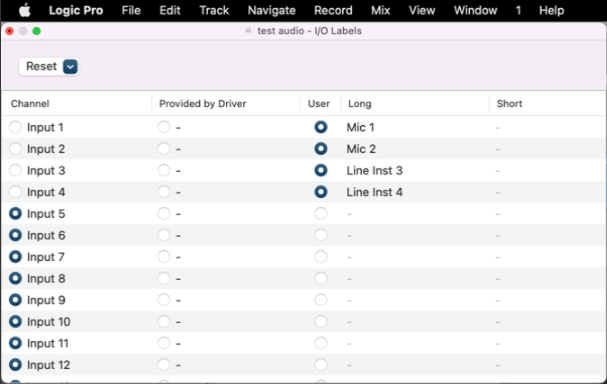
Once set up and renamed as desired, you can begin recording.
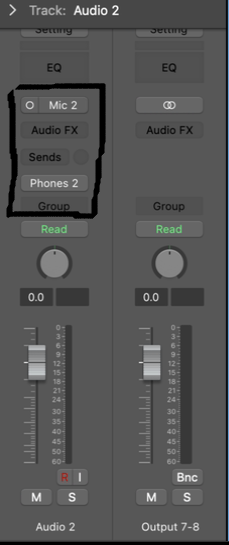
On a track, navigate to the I/O settings. The most accessible way is via the Inspector panel on the left side of your screen with a track selected. The input will be the input your source is coming in from on the MT 48 (Mic 1, Mic 2, Line 3-4, etc.)
The Output will by default go to your Mix Bus which then outputs to your main outputs on your MT 48, or to an output pair on your MT 48 directly. You can change this as you see fit.
Prior to recording, you will need to check your input level coming in to the interface. You do this through the MT 48's Preamp module for the appropriate input selected.
If you are recording more than one source at the same time, you will need to do this for each input.
See "Setting Up a Track to Record" in the Tutorials guide.