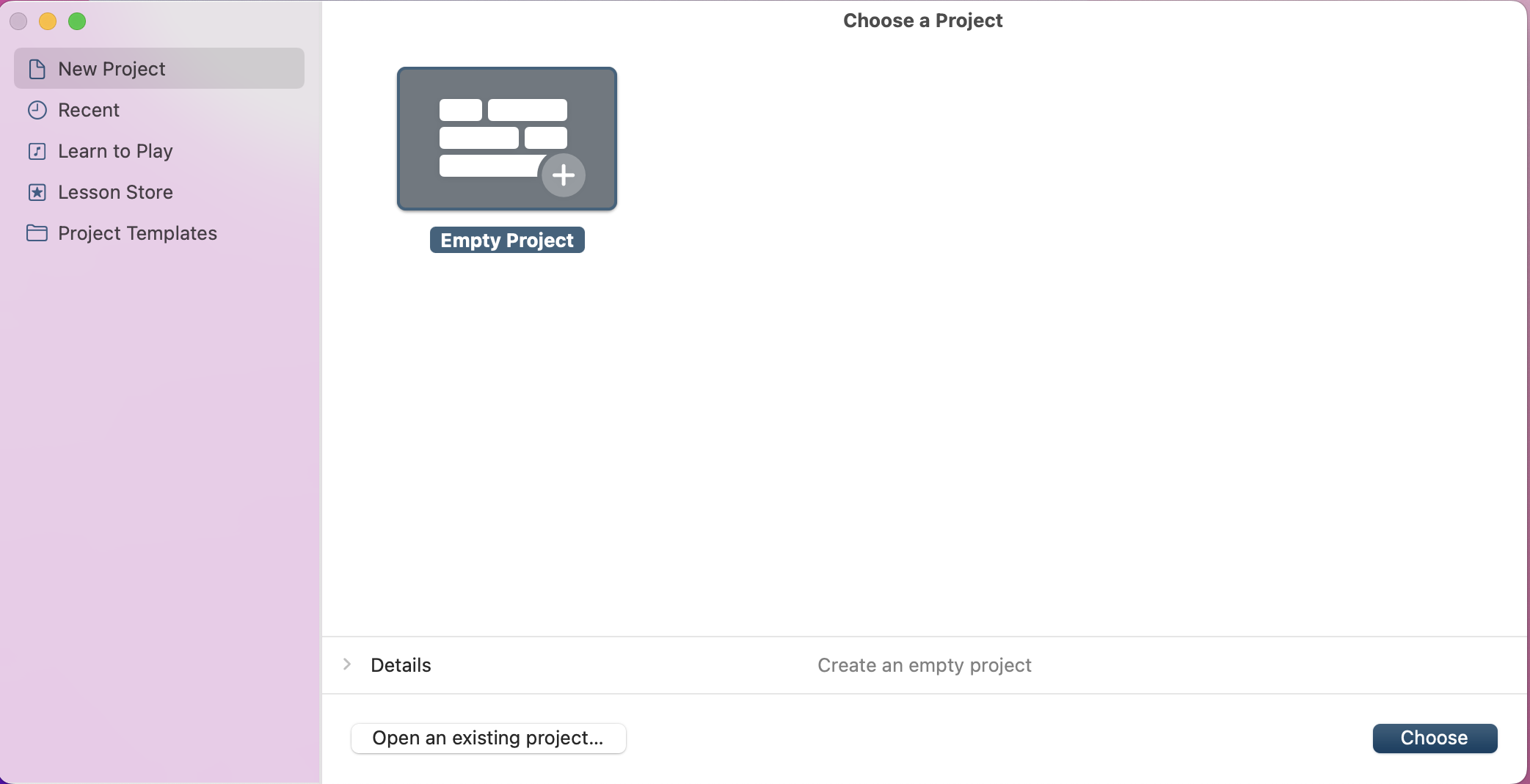
First, in the Choose a Project window select Empty Project
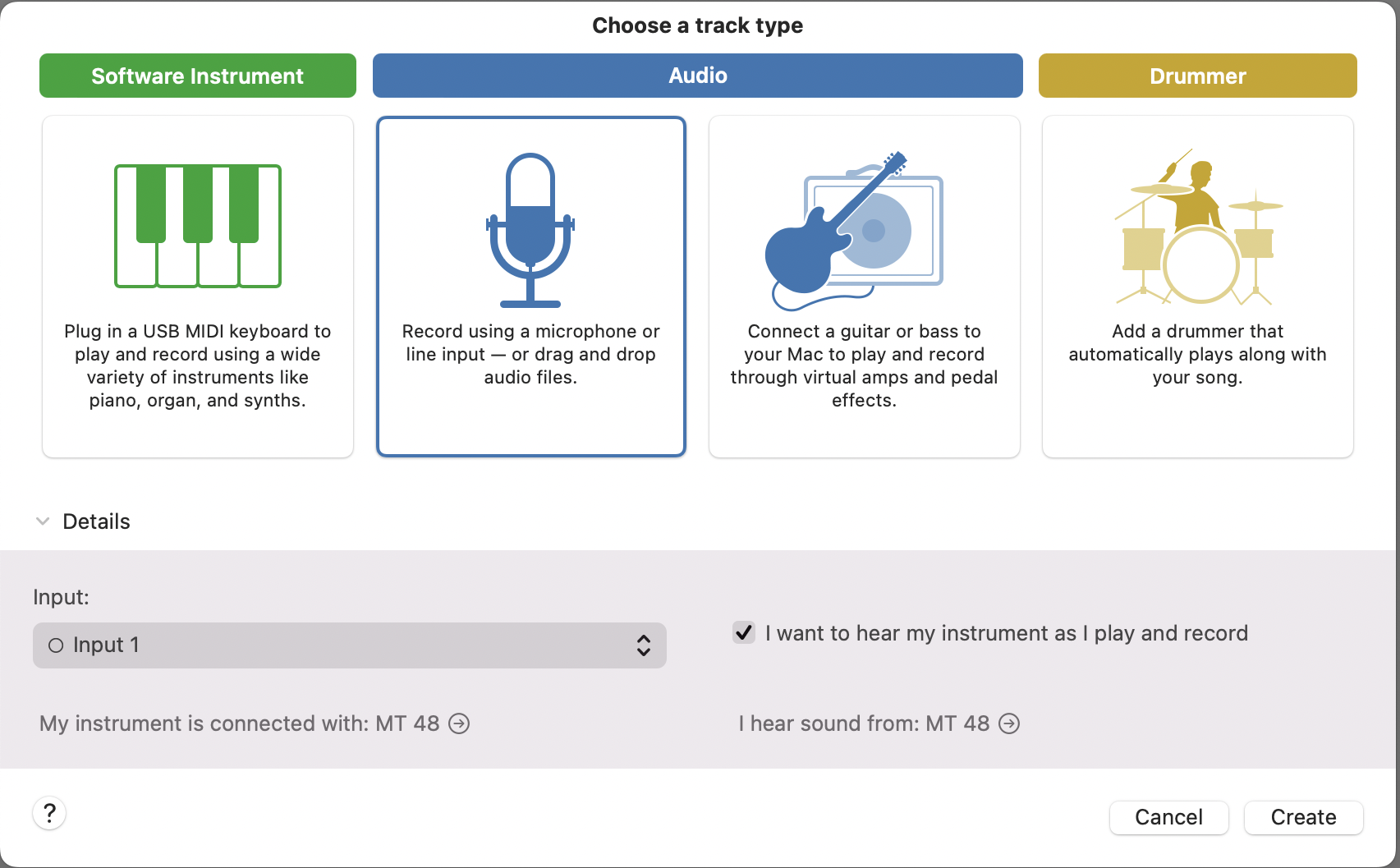
In the next window, Choose a Track Type select Audio.
Under the Details section where it says
My instrument is connected with:
I hear sound from:
Set both to the MT 48 if not already.
Select either option (click on the arrow)
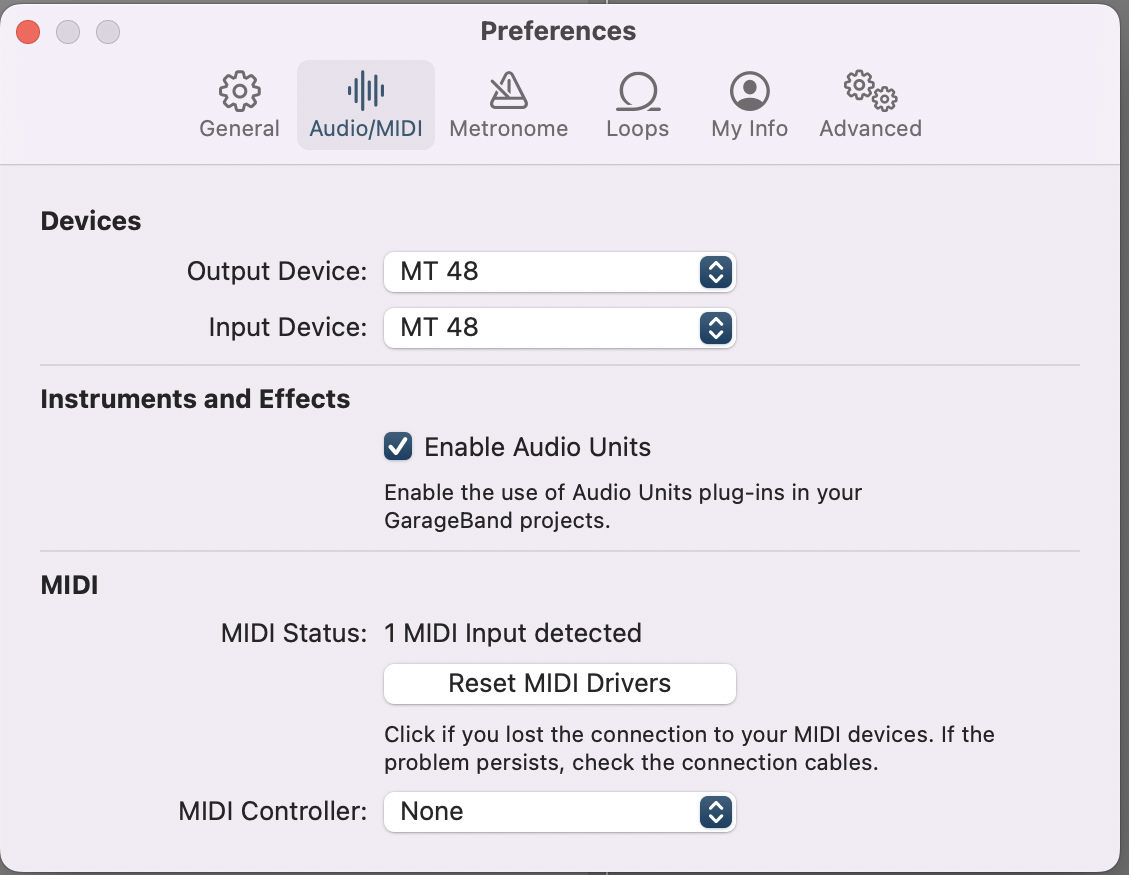
In the Preferences window, under Devices both the Output Device and Input Device should be the MT 48.
Click the Red X to close Preferences, and finally click Create to start the project with an audio track.
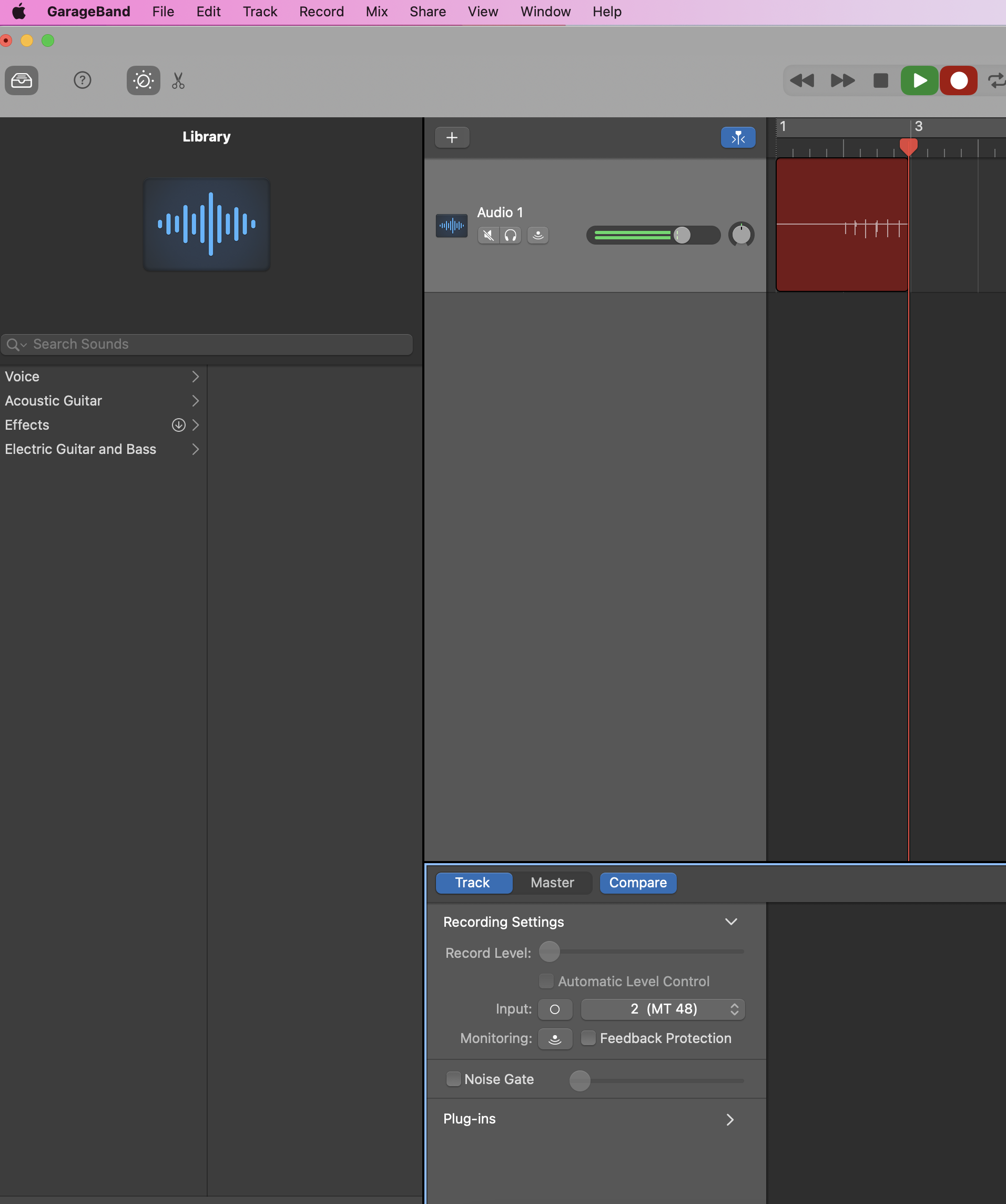
To start recording:
In Garageband's Recording Settings (bottom half of the project), select the appropriate input your recording source is connected to on the interface.
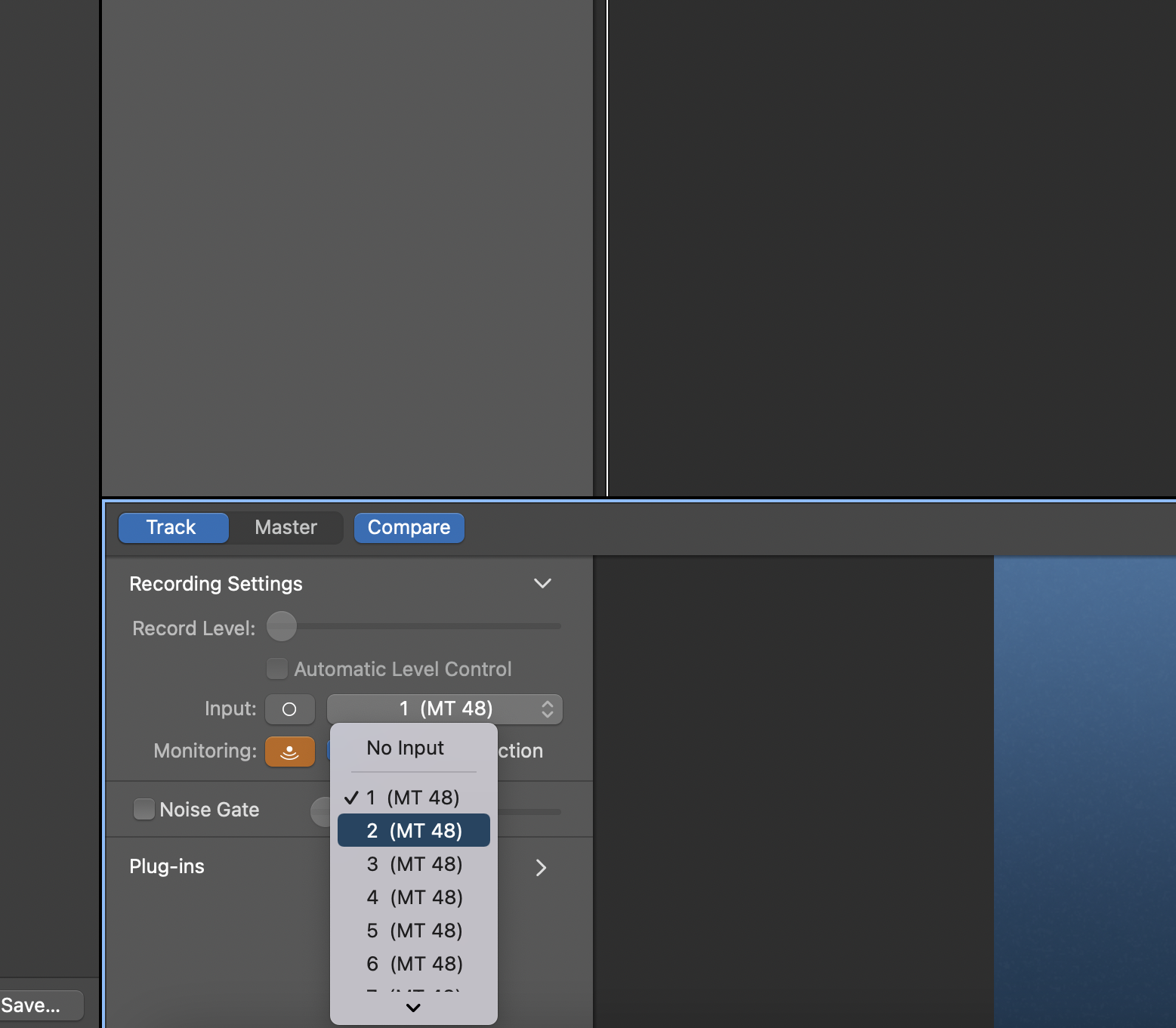
Playback should occur through whichever output is selected physically on the MT 48. You can select the output using the four top buttons depending on where you expect playback from (monitors or speakers.)
Prior to recording, you will need to check your input level coming in to the interface. You do this through the MT48's Preamp module for the appropriate input selected. If you are recording more than one source at the same time, you will need to do this for each input. See "Setting Up a Track to Record" in the Tutorials guide.
Sound check level, and hit Record at the top to begin.