Please note: this configuration was tested in Studio One Version 4 on Windows 10.
In Studio One your initial audio configuration is in the main opening menu, under Setup.
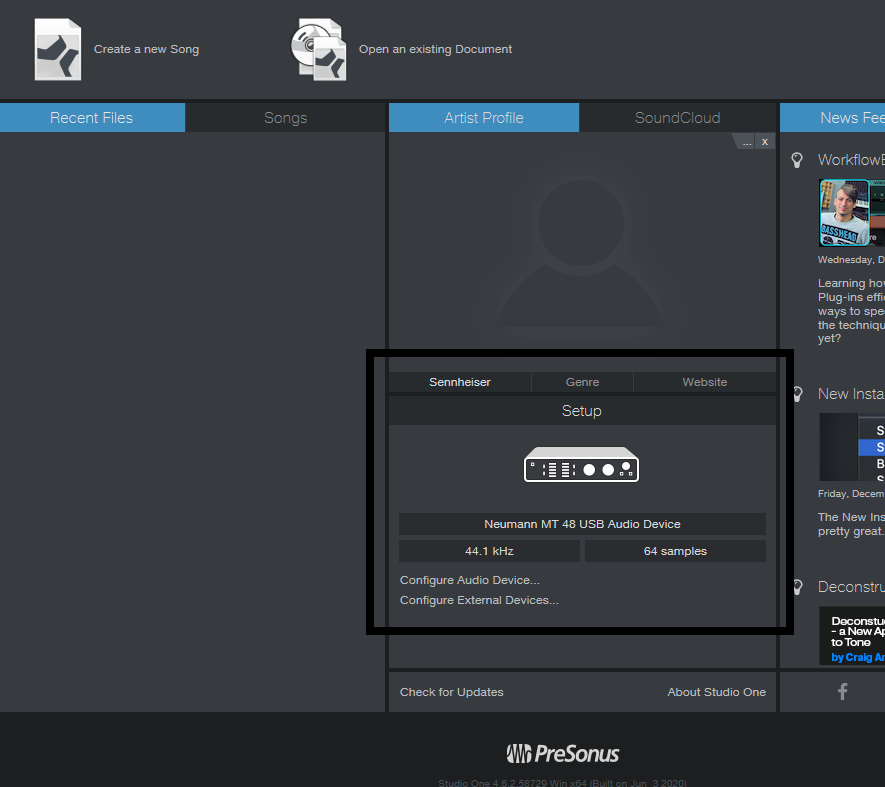
Make sure Neumann MT 48 USB Audio Device shows up here - if not, click under Setup to open your Options pane.
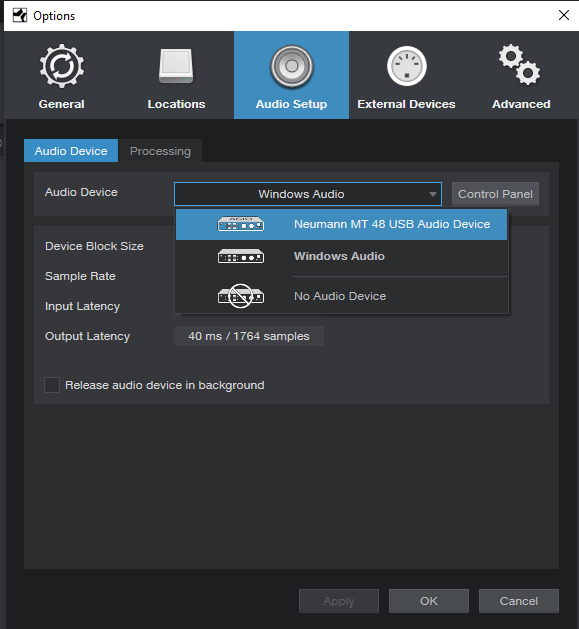
On Windows for Audio Device, select the MT 48 USB Audio Device, then click Apply with any changes.
(On Mac OS, this will show as Playback Device and Recording Device - both should be the MT48.)
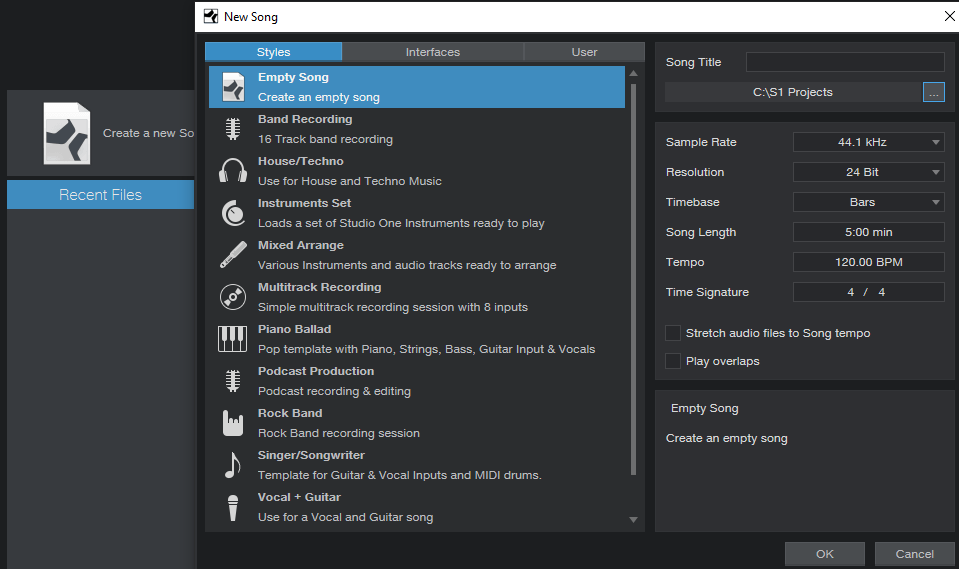
Click OK to close your Options, and select Create a New Song back in the main window, then select Empty Song.
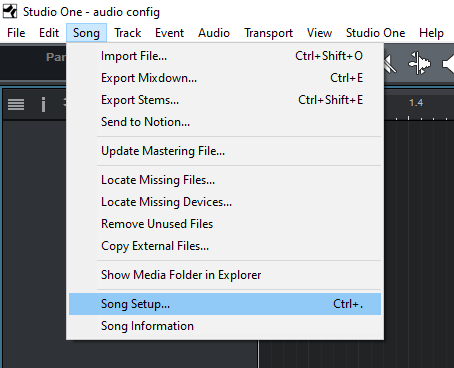
Go to Song > Song Setup
Select Audio I/O Setup to access the routing matrix for your Inputs and Outputs. This is where you can select your input and output channels you are physically using and rename them accordingly. The top row corresponds to the physical interface inputs/outputs on the MT 48, and the left hand column designates the software inputs/outputs (meaning what's available and how it's listed.)
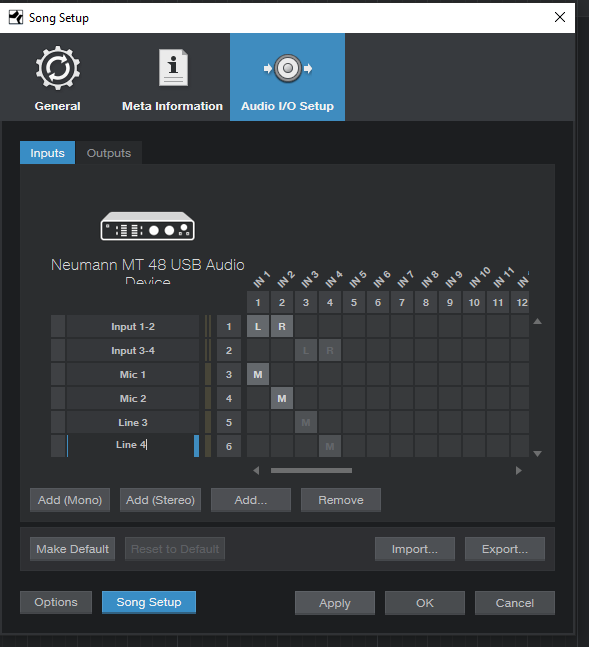
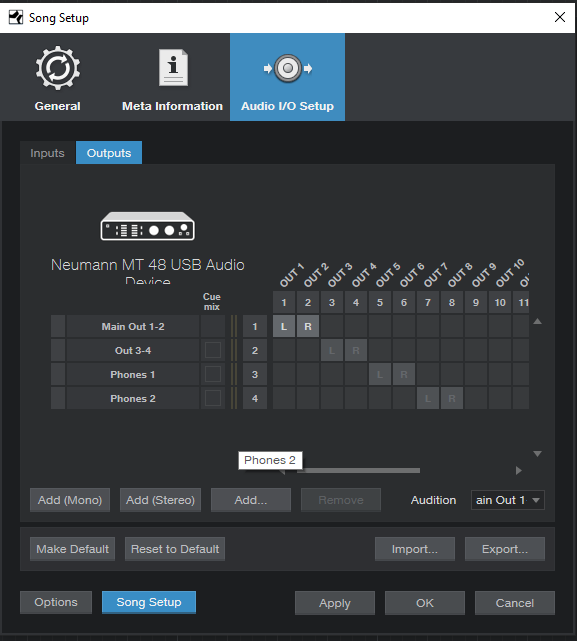
Also note the Add (Mono) and Add (Stereo) options - you can designate any input or outputs individually, and/or as pairs - for instance, Input 3-4 stereo and Input 3 and 4 individually (Mono). This is more relevant on the Inputs section as Outputs by default are in pairs.
As shown above, Inputs 1-4 are listed as mono inputs, and are also listed in stereo pairs as well. When a track is created in a project, depending on if the source is mono or stereo the available options will reflect accordingly.
Lastly when you are done you can click Make Default (then Yes on the prompt) which retains this grid mapping for future projects.
Once you have the appropriate inputs and outputs showing and are renamed as desired, you can begin recording.
To start recording:
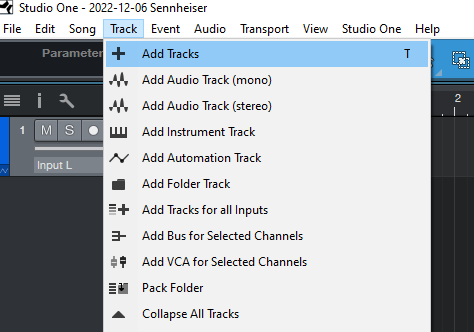
In a project, you can insert a track by going to Track > Add Tracks
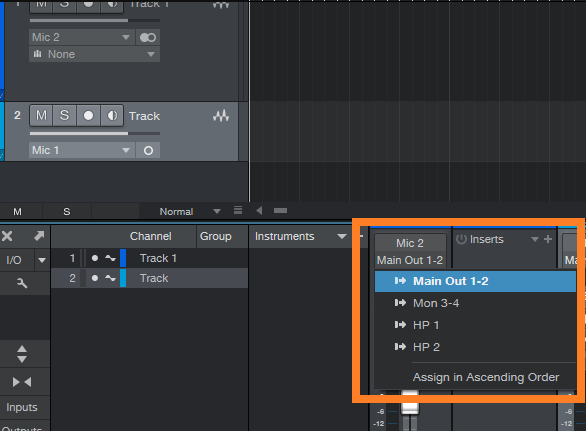
On this track, navigate to the Input settings. The input will be the input your source is coming in from on the MT 48 (Mic 1, Mic 2, Line 3-4, etc.)
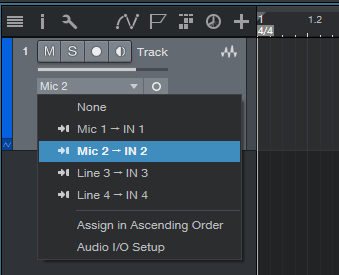
The Output will by default go to your main outputs (1-2) on your MT 48. You can change this as you see fit.
(If you double click on the track you are recording, it will pull up a Mixer view in the bottom half of the screen - this will have all of your routing options.)
Prior to recording, you will need to check your input level coming in to the interface. You do this through the MT 48's Preamp module for the appropriate input selected.
If you are recording more than one source at the same time, you will need to do this for each input.
See "Setting Up a Track to Record" in the Tutorials guide.