In Cakewalk SONAR, your audio configuration options are in the Preferences menu.
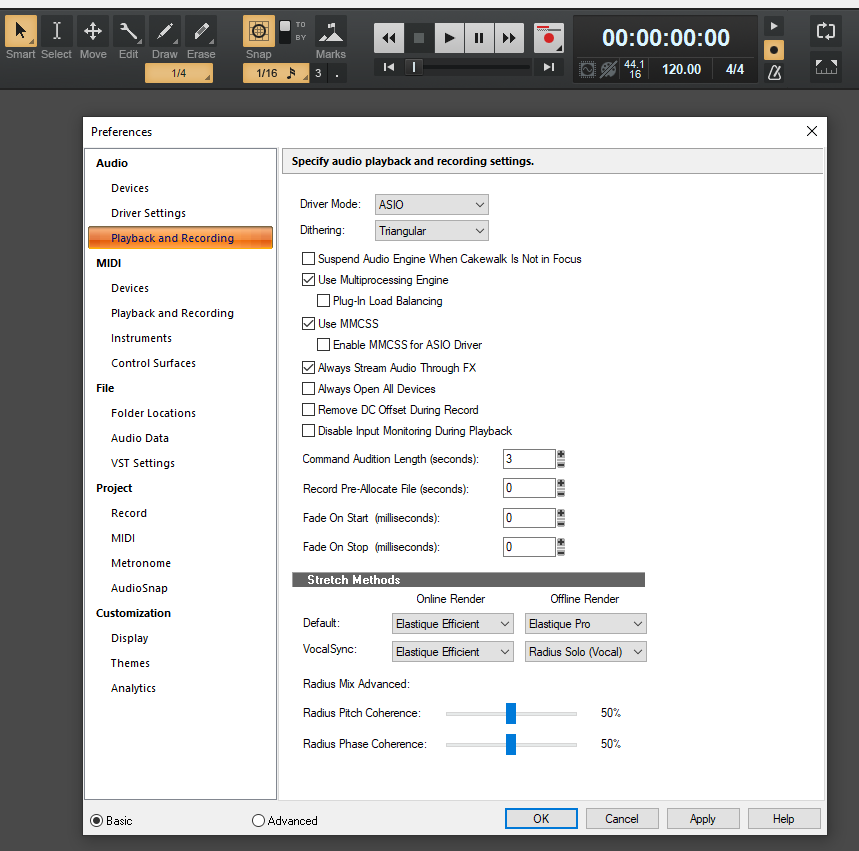
1. First, go to Edit > Preferences and select the Playback and Recording tab under Audio on the left
2. For Driver Type, select ASIO if not already, and hit Apply.
3. In the Preferences menu, go to Devices (listed under Audio.) Ensure your MT 48 is checked in this window.
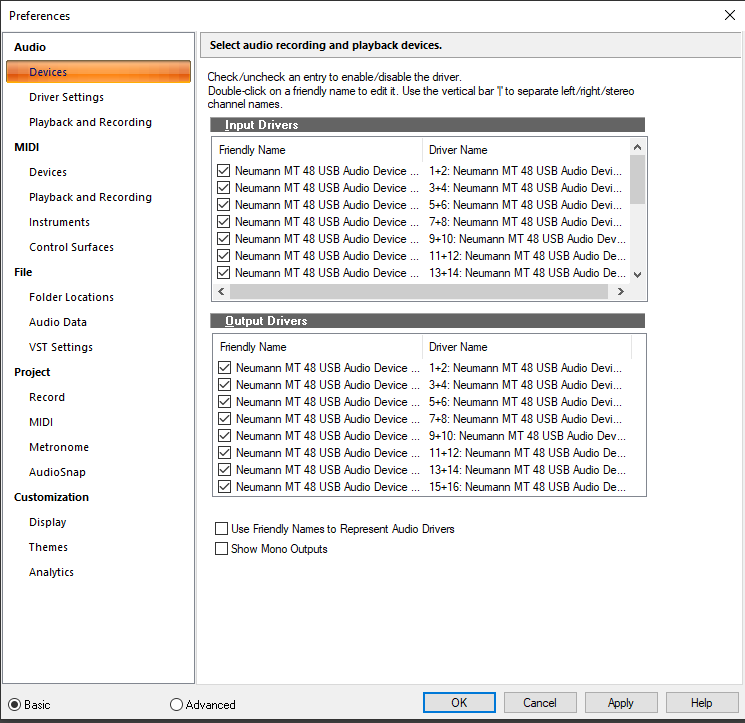
Note: if your Neumann is greyed out, try deselecting a secondary device option that's checked, which should allow selecting this driver.
Click Apply if you make any changes.
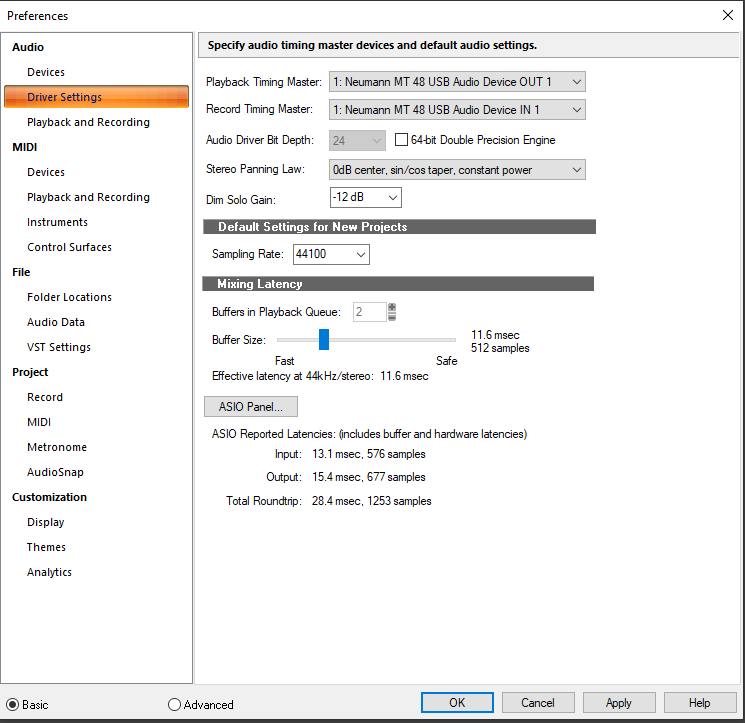
4. In Driver Settings, select the MT 48 as both the Playback Timing Master and Record Timing Master. Click Apply if you make any changes, then click OK.
Once you have the appropriate ins and outs showing and are selected in the Audio Preferences section, you can begin recording.
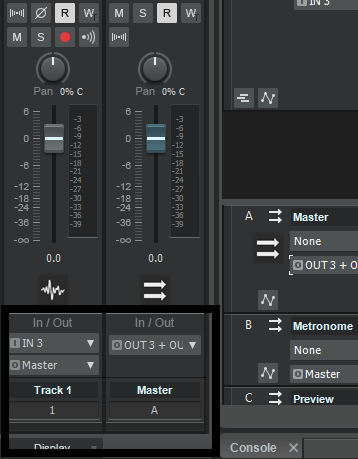
On a track, navigate to the I/O settings. The input will be the input your source is coming in from on the MT 48 (Mic 1, Mic 2, Line 3-4, etc) and is accessed right on the track itself.
The Output will by default go to your Master Bus, which then outputs to your main outputs on your MT 48.
You can change this as you see fit.
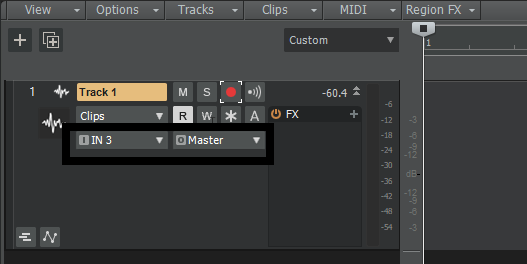
You can also access your input and output selections using the vertical track inspector on the left; track routing will be on the very bottom.
Prior to recording, you will need to check your input level coming in to the interface. You do this through the MT 48's Preamp module for the appropriate input selected.
If you are recording more than one source at the same time, you will need to do this for each input.
See "Setting Up a Track to Record" in the Tutorials guide.